Company T-ShirtStarting at 2500 pts/$25 usd15 %
CHANGE Card

Integrating CHANGE Card and loyalty rewards into Avionté’s agency and talent portals, with a shared structure for everyday account tasks.
I led UX design with 3Pillar Global to connect pay-card and loyalty experiences with Avionté’s existing agency and talent workflows.
Desktop design · Scroll horizontally to explore







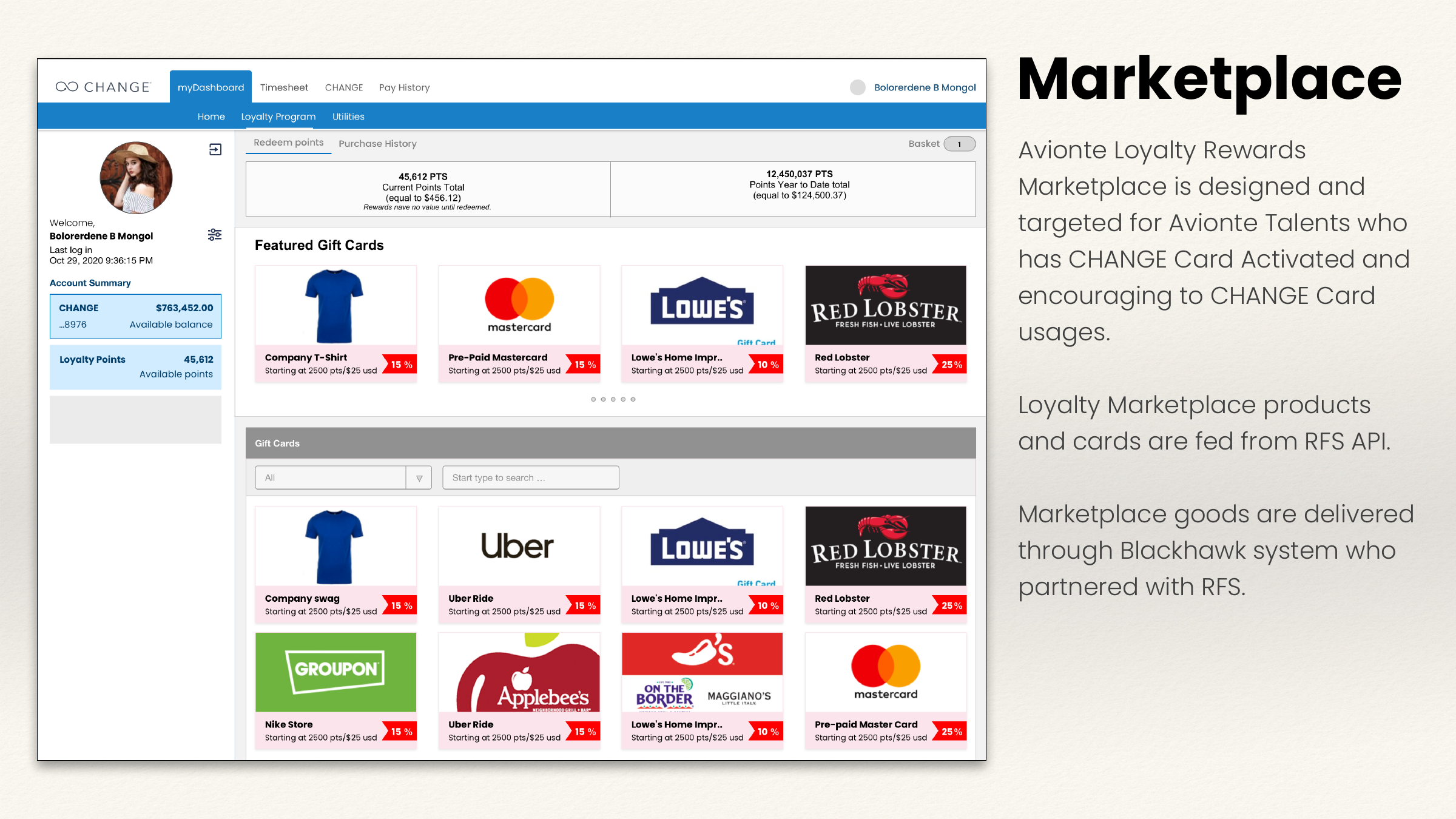
The loyalty marketplace brings points, gift cards, and CHANGE Card account context into one place.
The challenge
Agencies already used several Avionté portals to manage talent. Talent also moved between portals to manage profiles. Adding a pay card and loyalty marketplace introduced more account tasks and external dependencies.
Bring cardholder management, card inventory, loyalty administration, and existing staffing operations into a connected agency experience.
Keep profile, timesheet, pay history, CHANGE Card, and rewards access within a coherent talent portal.
As lead UX designer and project lead, I created workflows, wireframes, and an interactive prototype, and coordinated the design work within the project’s time frame. Massi Behbahani managed meeting coordination and JIRA records. Hitesh Acharya investigated the API dependencies for the next development phase.
People & responsibilities
The same platform serves people managing their own money and people operating the program. Each needs a different level of context, control, and reassurance.
These scenario personas represent the talent, agency, branch, and loyalty responsibilities explored in the design. Names and motivations are illustrative, rather than interview findings.
Uses the talent portal to review pay, manage her card, send money, and redeem rewards.
Finds cardholders and manages account-level card operations for a staffing agency.
Handles branch-level administration and card operations within the agency experience.
Coordinates enrollment, rewards configuration, point purchases, and points history.
User journey
The journey starts with one portal entry, then separates talent self-service from agency operations. Review and confirmation close the loop; recovery states help when a task cannot continue.
Card management · Transfers · Bill pay · Rewards · Statements
Cardholders · Branches · Inventory · Loyalty administration
| Moment | Talent intent | Agency intent | Uncertainty to address | Design response |
|---|---|---|---|---|
| Enter | Reach pay and card tools | Reach the right agency or branch | Which portal or account am I in? | Shared navigation and persistent account/scope context |
| Orient | Check balance and points | Find the cardholder or inventory | Am I looking at the right data? | Visible balances, identifying details, and clear search results |
| Act | Send money, change settings, redeem | Replace a card, configure rewards, reorder | What does this action affect? | Specific task labels and focused forms |
| Review | Check amount, recipient, or shortfall | Check target record and operational scope | Can I undo a mistake? | Explicit review and correction before confirmation |
| Follow through | Know whether it succeeded | Know what changed and what comes next | Is it pending, complete, or failed? | Status, reference, history, and recovery route |
The journey map connects the platform’s tasks and responsibilities. Additional review, recovery, and confirmation states are marked as proposals.
The approach
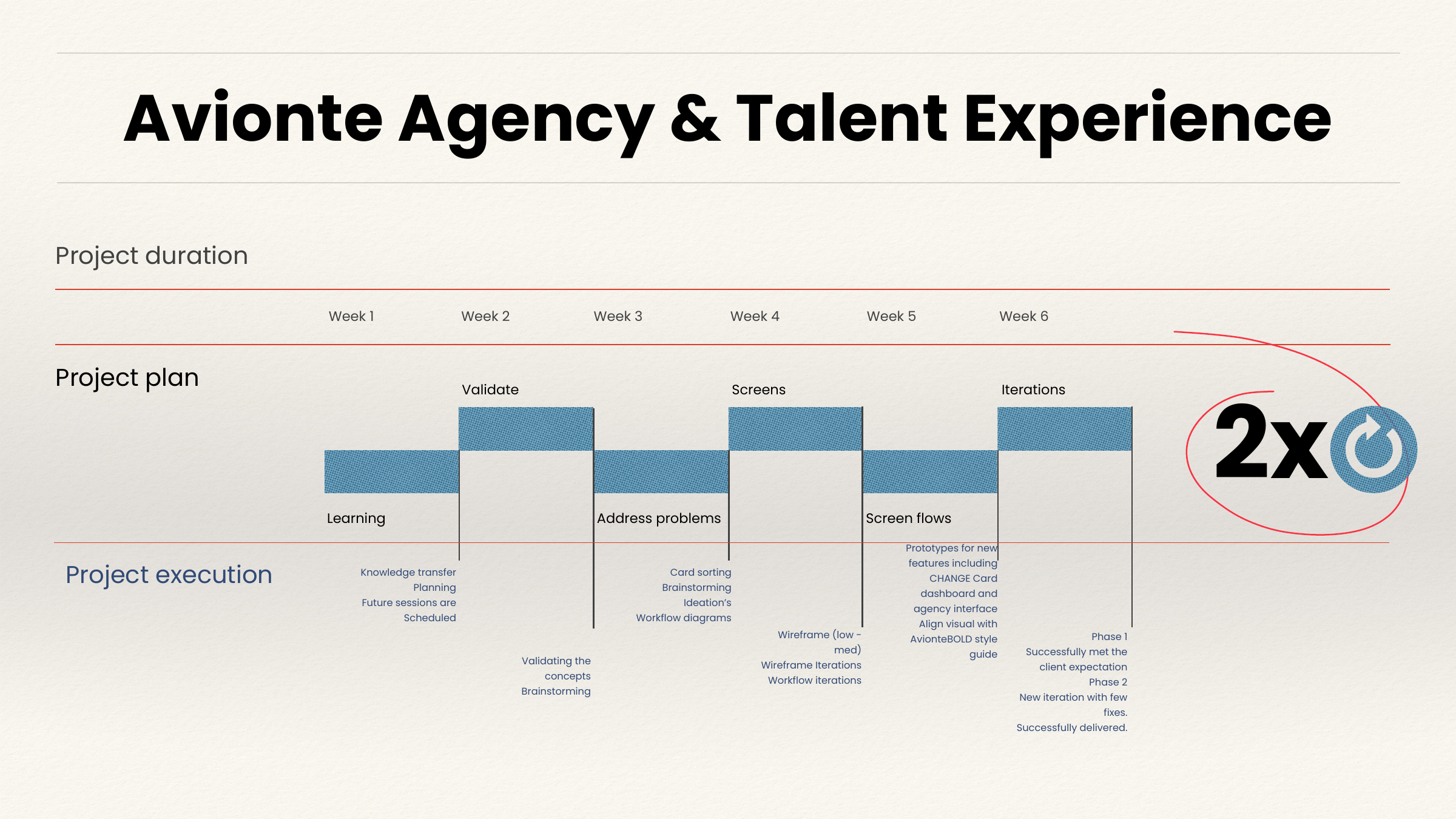
The work began with knowledge transfer, stakeholder alignment, and understanding Avionté’s front-office and back-office processes. Validation and design iterations then informed the portal structure and screen flows.
Knowledge transfer, project planning, and scheduling future sessions.
Concept validation and brainstorming.
Card sorting, ideation, and workflow diagrams.
Low-to-medium fidelity wireframes and workflow iterations.
Prototype features and align visuals with the AviontéBOLD style guide.
Phase 1 delivery followed by a second iteration with fixes.
CHANGE Card and loyalty feeds depend on external APIs.
Marketplace products and cards are supplied through RFS.
Marketplace goods are delivered through the Blackhawk system partnered with RFS.
Front-office and back-office processes shape portal workflows.
Information architecture
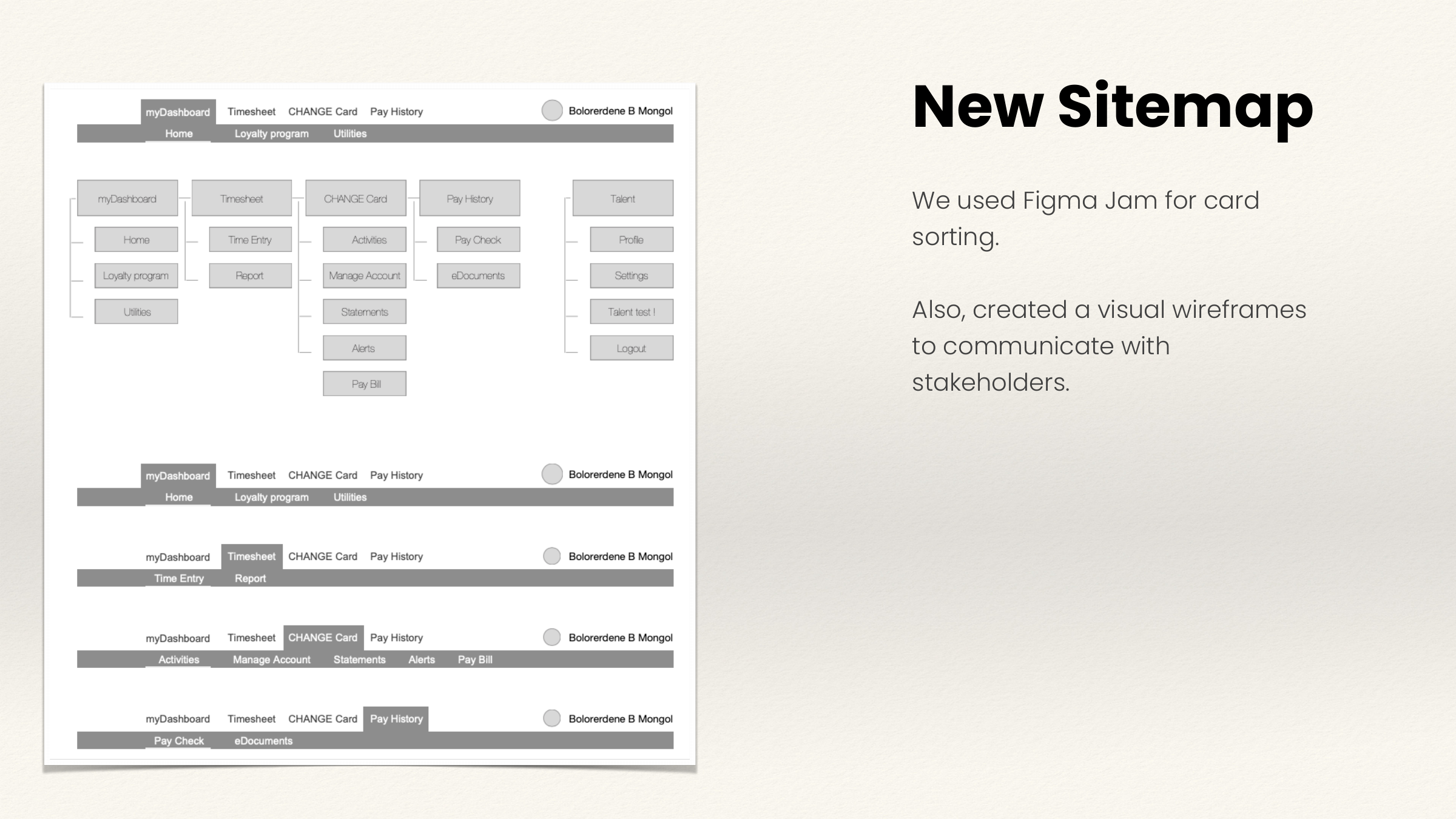
Card sorting combined the navigation hierarchies of three previous portals. FigJam supported the sorting work, while visual wireframes helped communicate the resulting structure with stakeholders.
The product and development teams agreed on an SSO approach for agency access. The design work included SSO diagrams connecting Avionté Classic, AviontéBOLD, the payment portal, loyalty management, and the back end.
Account management
Card status, self-service actions, and alert preferences share one workspace. The account summary stays visible while the cardholder manages these settings.
Proposed mobile adaptation of the original desktop screen.
Alert settings applied immediately when you switch the button
Transfers
A recipient list sits beside completed transfers. Account and confirmation details appear inside the selected transaction, keeping context close to the action.
Completed transfers remain available below the recipient list.
Proposed mobile adaptation of the original desktop screen.
Add receiver
The overlay presents Card to Card, Card to Bank, and Bank to Card before collecting recipient details. Giving the methods equal visual weight makes this first decision explicit.
Select how this recipient will receive money.
Proposed mobile adaptation of the original desktop screen.
Card to Card transaction has no delay. Fastest
transaction method of all tree.
Card to Card transaction has no delay. Fastest
transaction method of all tree.
Card to Card transaction has no delay. Fastest
transaction method of all tree.
Pay Bill User Profile
A two-column form groups identity, phone, and email settings. Email format choices and the Cancel / Next footer make the setup step explicit.
Proposed mobile adaptation of the original desktop screen.
This profile only applies to your
Bill Pay service.
We’ll send your Pay Bill Alert to this email address. To update your email,
go to update email link.
Statements
Statement periods and balance details occupy the main column. The month selector, spend analyzer, and comparison chart provide adjacent context.
Spending context appears after the selected statement.
Proposed mobile adaptation of the original desktop screen.
Loyalty marketplace
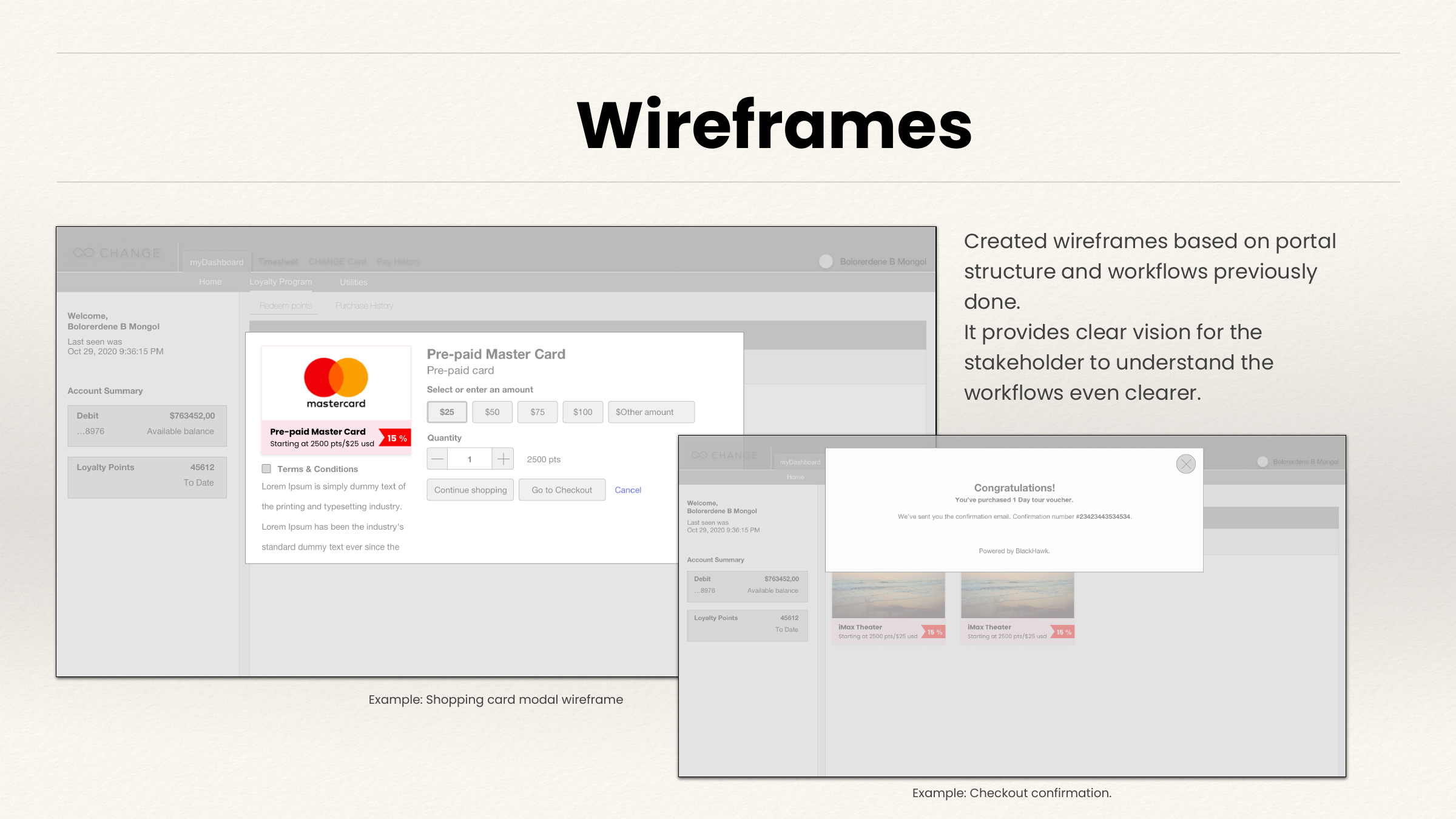
The marketplace targets talent with an activated CHANGE Card and encourages card usage. At checkout, the card can cover the difference when the rewards cost exceeds the available points.
Use your CHANGE Card for the remaining $43.88.
Proposed mobile adaptation of the original desktop screen.
Pay difference with
The checkout separates available points, the points subtotal, the shortfall, its dollar equivalent, and the remaining amount due.
The card balance and loyalty points remain in the shared sidebar, while the card payment choice appears next to the order summary.
Agency operations
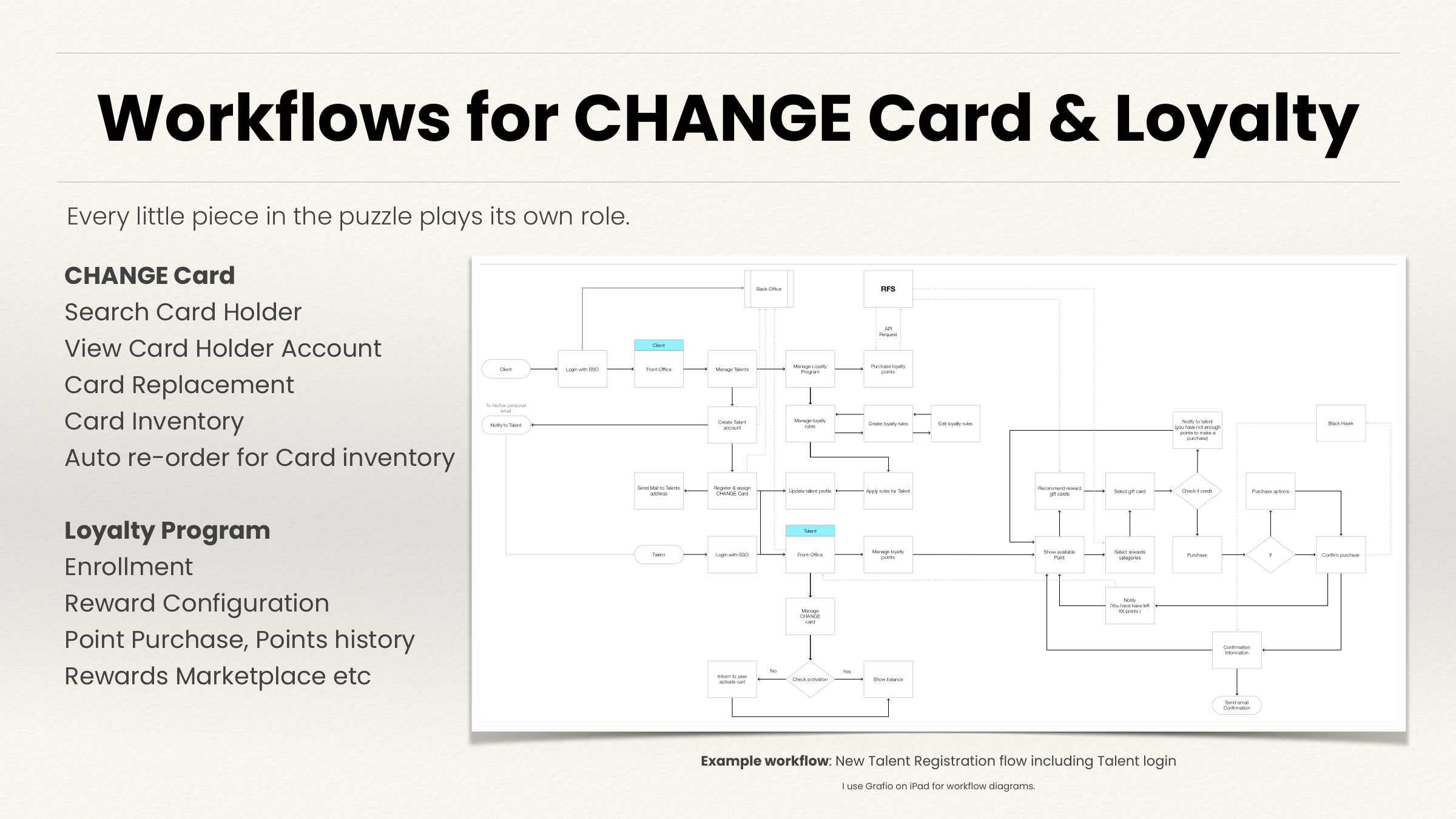
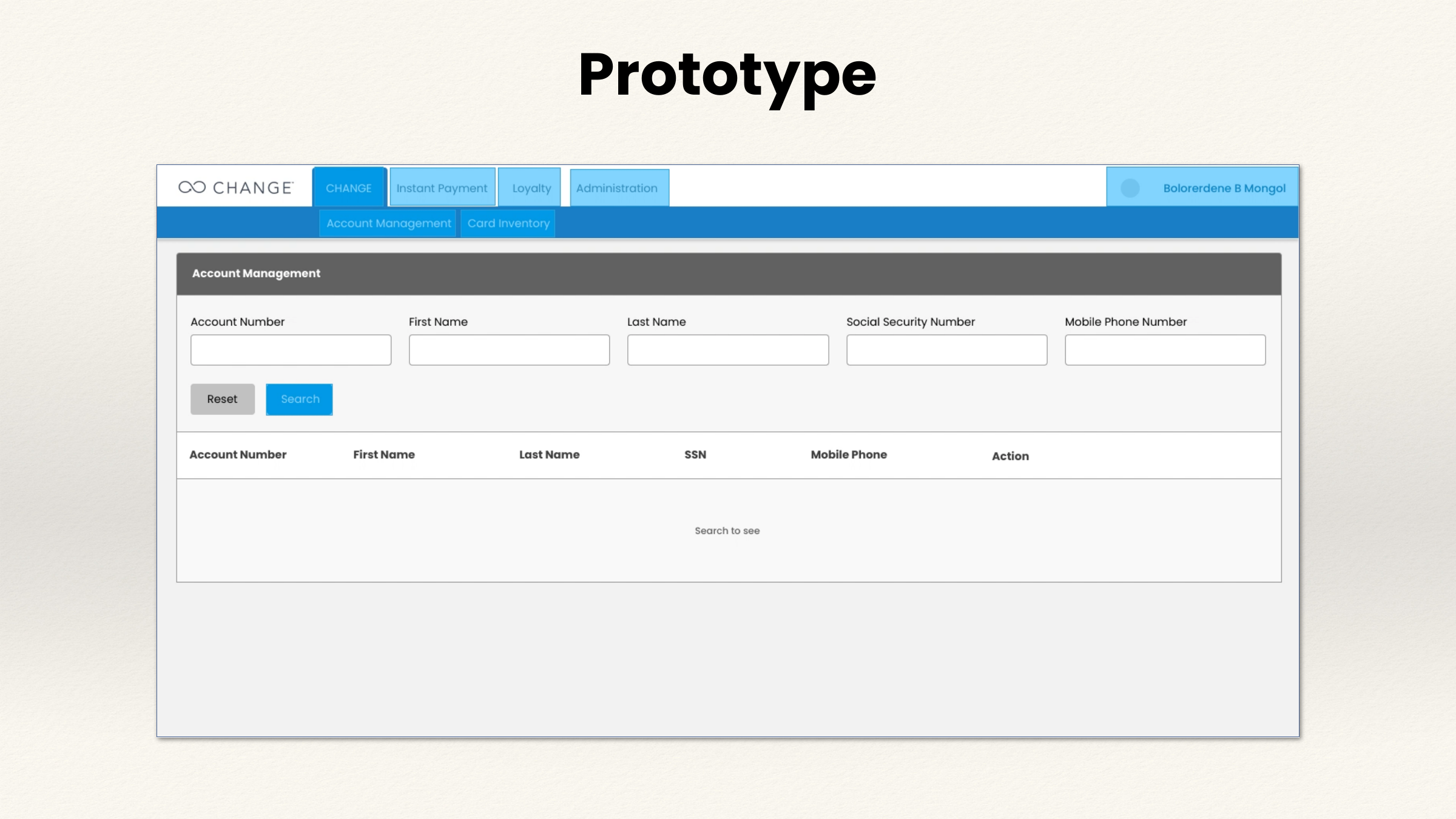
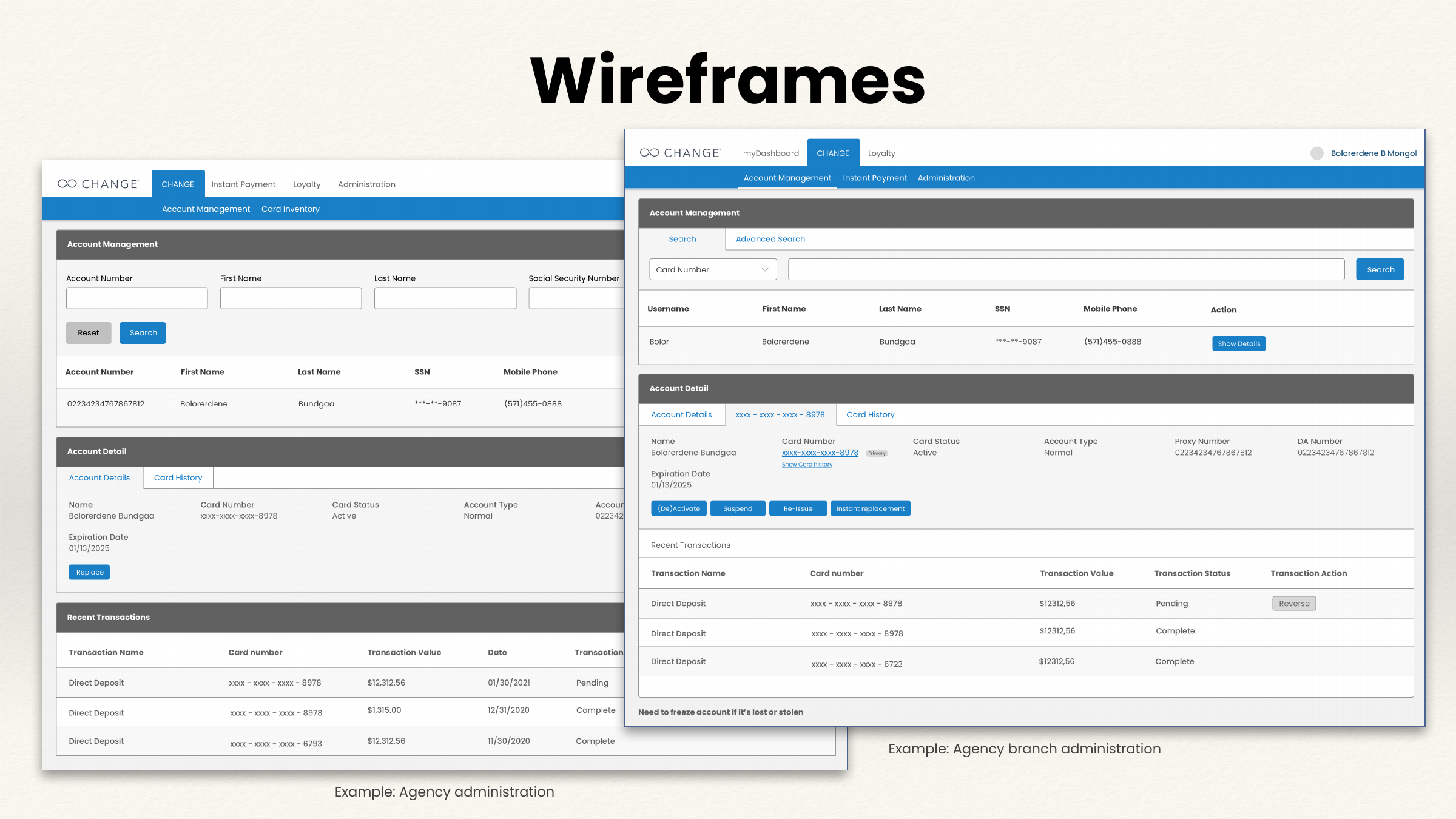
Agency work covered cardholder search, account detail, replacement, inventory and automatic reordering, alongside loyalty enrollment, reward configuration, point purchases, and points history. Agency and branch administration wireframes made those operational tasks visible.
Complete the workflows
Six workflow branches connect portal entry, card management, transfers, bill-pay setup, rewards, and agency operations. Mobile and desktop views explore the same decisions across devices; additional states are marked as proposals.
Financial-provider rules, fees, settlement, permissions, and fulfilment behavior need confirmation against the production integrations. The screens illustrate the design questions without simulating real transactions.
A connected entry experience helps people reach the correct talent or agency workspace. These proposed entry and recovery states make account context and access explicit.
Explore the main task and its alternative or recovery states. These screens are not all sequential steps.
Sign in to reach your talent or agency workspace.
Recognize the account and preserve the intended destination.
Separate personal account tasks from operational permissions.
Establish shared balance and navigation context before starting a task.
The agency overview exposes operational tasks separately from talent self-service.
We could not sign you in. Check your details or recover access to your account.
Keep error handling specific enough to recover and appropriate to the authentication system.
Your session has expired. Sign in again to return to this workspace.
Restore access without presenting financial data before authentication.
Sign in to reach your talent or agency workspace.
Recognize the account and preserve the intended destination.
Separate personal account tasks from operational permissions.
Establish shared balance and navigation context before starting a task.
The agency overview exposes operational tasks separately from talent self-service.
We could not sign you in. Check your details or recover access to your account.
Keep error handling specific enough to recover and appropriate to the authentication system.
Your session has expired. Sign in again to return to this workspace.
Restore access without presenting financial data before authentication.
Card status, lost/stolen reporting, PIN, disputes, and alerts belong together. Proposed review and result states make consequential changes understandable.
Explore the main task and its alternative or recovery states. These screens are not all sequential steps.
Keep status, card identity, and related actions visible together.
Review the card below before changing its status. Choose Keep active to return without making a change.
A consequential status change deserves confirmation; exact provider behavior needs verification.
Your card status is now inactive. Return to card controls to manage the card or report it lost or stolen.
Close the loop and show how the user can manage the state next.
Tell us what happened to this card. Review the report and replacement details before confirming.
The original lost/stolen action needs a clear reporting and protection path.
Your report has been received. Review the card status and follow the replacement request for the next update.
Separate reporting, status changes, and replacement fulfilment.
Alert changes apply immediately. Check each preference before leaving this screen.
Distinguish immediate preference changes from a reviewed card-status action.
Keep status, card identity, and related actions visible together.
Review the card below before changing its status. Choose Keep active to return without making a change.
A consequential status change deserves confirmation; exact provider behavior needs verification.
Your card status is now inactive. Return to card controls to manage the card or report it lost or stolen.
Close the loop and show how the user can manage the state next.
Tell us what happened to this card. Review the report and replacement details before confirming.
The original lost/stolen action needs a clear reporting and protection path.
Your report has been received. Review the card status and follow the replacement request for the next update.
Separate reporting, status changes, and replacement fulfilment.
Alert changes apply immediately. Check each preference before leaving this screen.
Distinguish immediate preference changes from a reviewed card-status action.
Sending money connects recipient selection, transfer details, review, and history. The proposed flow distinguishes submission, completion, and recovery.
Explore the main task and its alternative or recovery states. These screens are not all sequential steps.
Keep existing recipients reachable before asking for new details.
Show a focused entry step; account validation rules remain provider-dependent.
Verify the recipient and amount before sending.
Do not imply a zero fee or immediate settlement without provider confirmation.
Your transfer has been submitted and is waiting for confirmation. You can follow its status in transfer history.
A pending state avoids showing a payment as complete before settlement.
Your transfer to Pam Ruprecht is complete. Open the transfer details to review the confirmation.
The completed result links back to the history pattern in the original screen.
We could not accept these transfer details. Check the recipient and amount before continuing.
Recover before submission without losing the selected recipient.
Keep existing recipients reachable before asking for new details.
Show a focused entry step; account validation rules remain provider-dependent.
Verify the recipient and amount before sending.
Do not imply a zero fee or immediate settlement without provider confirmation.
Your transfer has been submitted and is waiting for confirmation. You can follow its status in transfer history.
A pending state avoids showing a payment as complete before settlement.
Your transfer to Pam Ruprecht is complete. Open the transfer details to review the confirmation.
The completed result links back to the history pattern in the original screen.
We could not accept these transfer details. Check the recipient and amount before continuing.
Recover before submission without losing the selected recipient.
Bill-pay setup groups identity, contact details, email updates, and alert preferences. Proposed review and validation states help people finish setup with confidence.
Explore the main task and its alternative or recovery states. These screens are not all sequential steps.
Collect identity and contact information inside a focused setup task.
Keep an email update distinct from choosing the message format.
Review the contact details before continuing into bill pay.
Let the user check the information that future bill-pay communication relies on.
Your profile is ready. Continue to Bill Pay or review your contact information.
Close profile setup without implying that a bill has been paid.
Use the required format. Keep the other profile values in place.
Recover locally instead of clearing a partly completed setup form.
Collect identity and contact information inside a focused setup task.
Keep an email update distinct from choosing the message format.
Review the contact details before continuing into bill pay.
Let the user check the information that future bill-pay communication relies on.
Your profile is ready. Continue to Bill Pay or review your contact information.
Close profile setup without implying that a bill has been paid.
Use the required format. Keep the other profile values in place.
Recover locally instead of clearing a partly completed setup form.
Rewards browsing leads to a checkout that shows the points shortfall and its card-payment equivalent. Proposed order states connect that decision to confirmation and history.
Explore the main task and its alternative or recovery states. These screens are not all sequential steps.
Keep points visible while exploring the reward catalogue.
Make the quantity’s effect on the redemption cost visible.
Explain the shortfall and payment choice next to the order summary.
Your order is confirmed. Open purchase history to review the payment and follow its delivery status.
Link confirmation to history and distinguish order placement from fulfilment.
Open an order to review its points, card payment, and latest status.
Make redemption traceable without assuming when either balance updates.
Your basket is still here. Review your payment details before trying again.
Do not silently consume points or imply success when the provider has not confirmed the order.
Keep points visible while exploring the reward catalogue.
Make the quantity’s effect on the redemption cost visible.
Explain the shortfall and payment choice next to the order summary.
Your order is confirmed. Open purchase history to review the payment and follow its delivery status.
Link confirmation to history and distinguish order placement from fulfilment.
Open an order to review its points, card payment, and latest status.
Make redemption traceable without assuming when either balance updates.
Your basket is still here. Review your payment details before trying again.
Do not silently consume points or imply success when the provider has not confirmed the order.
Agency operations connect cardholder search, account details, transactions, replacement, inventory, and loyalty management. Proposed states keep the selected person and branch visible through each action.
Explore the main task and its alternative or recovery states. These screens are not all sequential steps.
Make operational scope explicit before revealing or changing cardholder data.
Provide enough identifying context to distinguish similar results.
Check the cardholder, branch, and requested replacement before confirming.
A staff action must stay tied to the selected person and branch.
The request is recorded for this cardholder. Review its status in account details.
Distinguish a recorded request from completion and keep related operational tasks accessible.
Inventory and reorder decisions need clear branch context, thresholds, and request status.
Keep enrollment, rewards, point purchases, and history reachable from the loyalty workspace.
Make operational scope explicit before revealing or changing cardholder data.
Provide enough identifying context to distinguish similar results.
Check the cardholder, branch, and requested replacement before confirming.
A staff action must stay tied to the selected person and branch.
The request is recorded for this cardholder. Review its status in account details.
Distinguish a recorded request from completion and keep related operational tasks accessible.
Inventory and reorder decisions need clear branch context, thresholds, and request status.
Keep enrollment, rewards, point purchases, and history reachable from the loyalty workspace.
Delivery & evidence
The design work was delivered in two phases. Phase 1 met the client’s expectations; a second iteration incorporated fixes before Phase 2 delivery.
Portal structure, SSO diagrams, workflow diagrams, low-to-medium fidelity wireframes, screen flows, and interactive prototypes aligned with the AviontéBOLD style guide.
The six-week engagement connected stakeholder feedback with portal structure, workflows, wireframes, and prototypes. Two delivery phases provided room to refine the design and address fixes.
Explore the planning, card sorting, workflows, wireframes, marketplace, and agency prototype that supported the connected experience.